You are able to digitally sign PDF documents. To get started, open up the document in Adobe Acrobat Reader and follow the steps below:
- Click the Sign icon in the toolbar. You can also go to Tools > Fill & Sign or choose Fill & Sign from the right pane.

2. Click Fill & Sign when you see the below window.

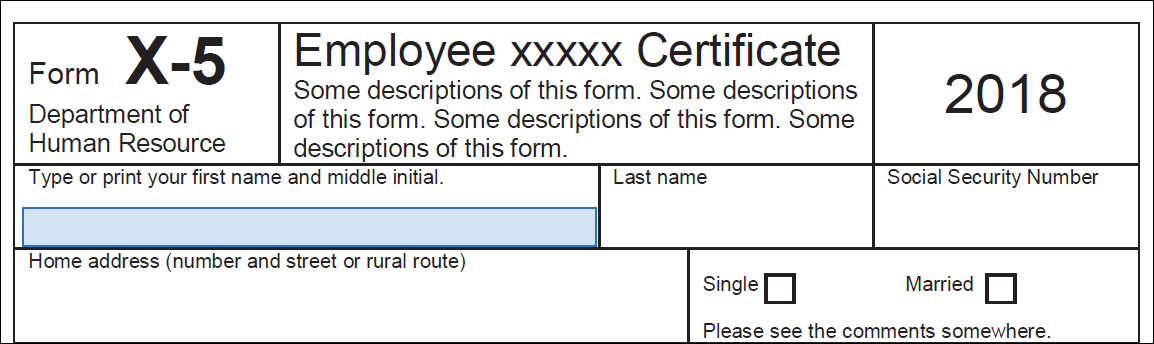
3. The form fields to be signed will automatically be highlighted in blue when you hover your mouse over them. Click anywhere within the blue box to type in your information.
4. Click the Sign icon, and choose to add either your signature or your initials.
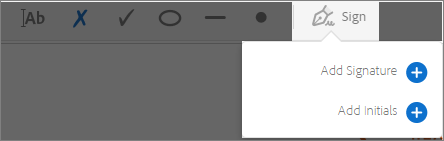
5. If you’re signing for the first time, you’ll be asked to type, draw, or import a signature. Once you complete this step, you will be able to use your signature for future documents without having to re-create it.
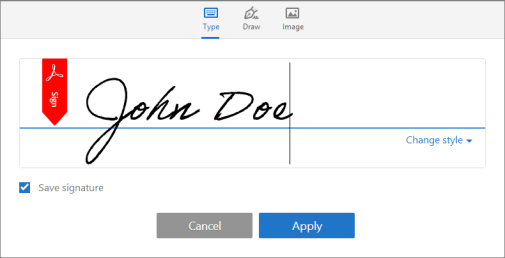
- Type: Type your name in the field. You can choose from a small selection of signature styles; click Change Style to view a different style.
- Draw: Draw your signature in the field.
- Image: Browse and select an image of your signature, if you have one saved.
- Save Signature: When this check box is selected, your signature will be saved for reuse.
Click Apply, and then click at the place in the PDF where you want to place the signature or initial.
 Concordia College - NY