Best Practices
Only do one import – multiple imports could result in duplicate files, which will raise the size of your course. This could potentially cause issues in Blackboard. Do one import, and if you need to add or edit anything, you can do it directly within your course by following the instructions here.
Sometimes, you may want to use similar content that was used in previous courses. It’s possible to move all of that content over in a few easy steps.
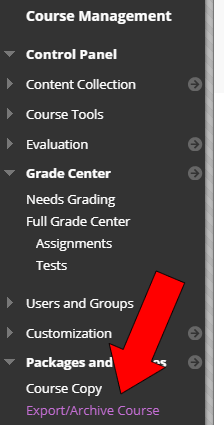
Under Course Management, go to Packages and Utilities, Export/Archive Course:
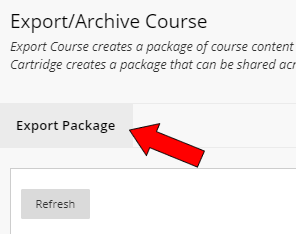
Click on Export Package to start your export:
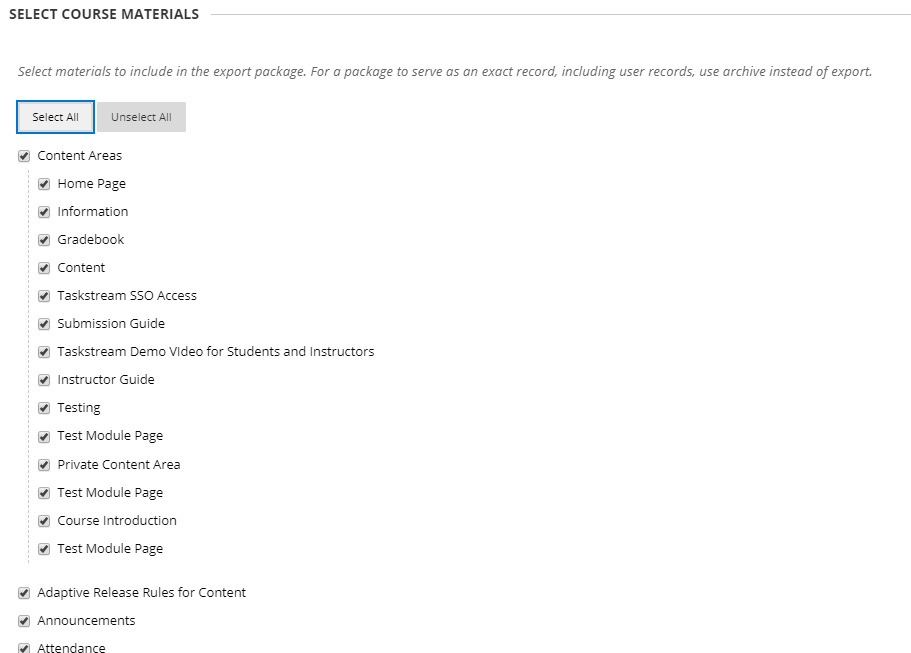
On the next page, choose which materials you would like to move over. You can also choose “Select All”:
Click Submit. The export may take a few minutes, depending on the size of the course. When it’s ready, you should receive an email. You can also click Refresh to view the package:
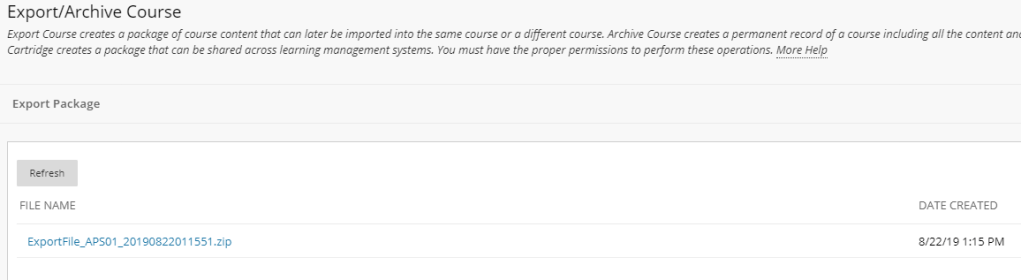
Click on the file name to download to your computer.
To Import a Course File:
Navigate to the new course – the one that will be receiving the course content you just exported.
Go to Course Management, then Packages and Utilities, Import Package/View Logs:

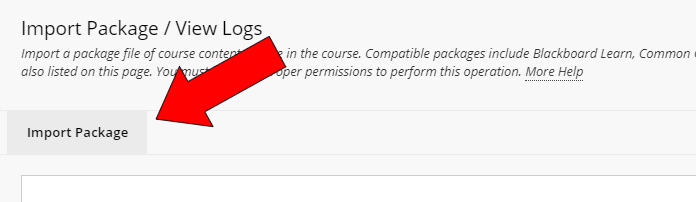
Click on Import Package:
Follow the steps below:
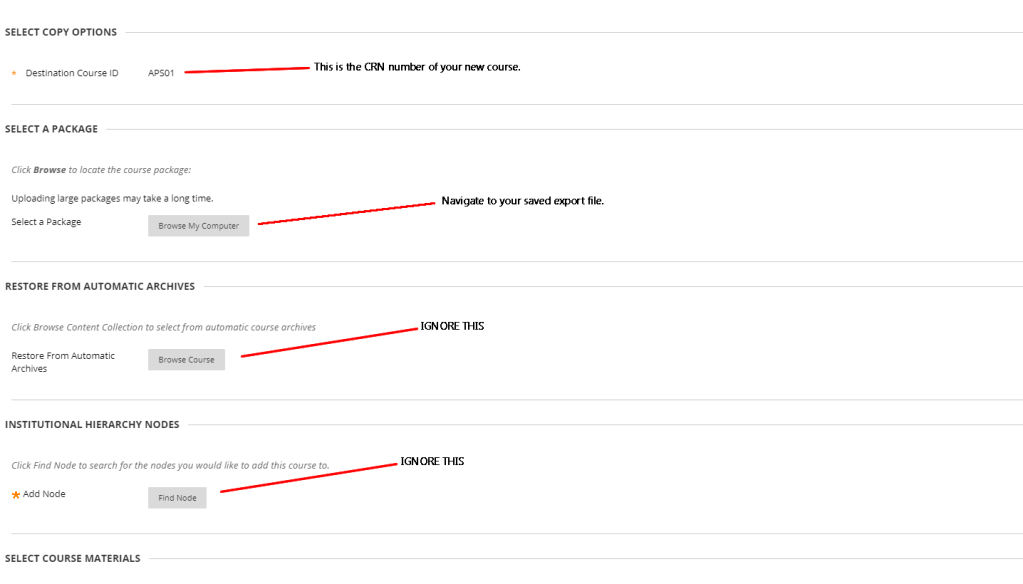
Click Submit, and give Blackboard a few minutes to import your course. You may receive an email when it’s complete – this may get sent to your Junk folder.
 Concordia College - NY